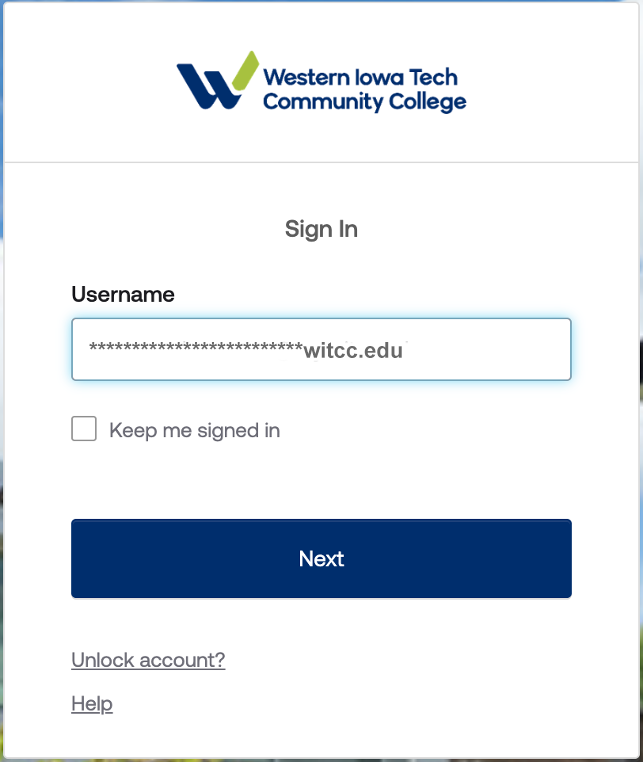
When you try to access MyWIT (my.witcc.edu), you will be prompted to set up your OKTA Verification. It will ask you for your email. Your email will follow the following template: firstname.lastname@my.witcc.edu (for example, if your name is John Doe, your student email would be john.doe@my.witcc.edu). After this, click "Next."
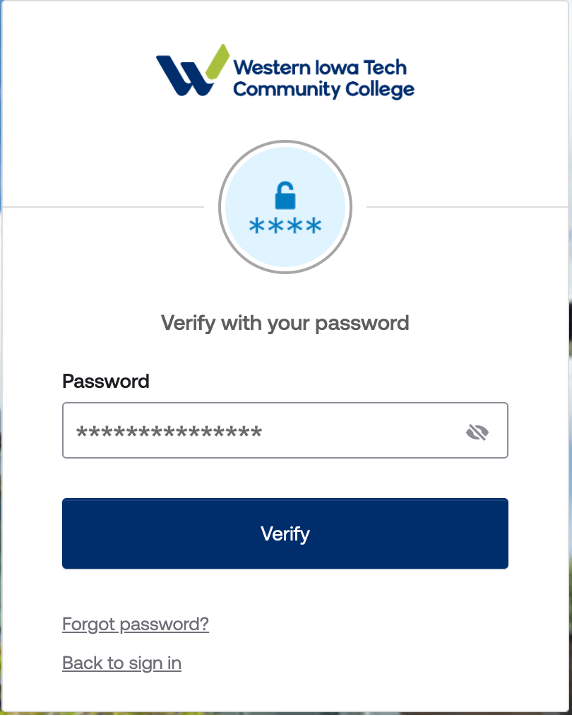
You will now be prompted for a password. If you have not set up your MyWIT password, you will follow the template for your temporary password: Flmmddyyyywitcc (capital first letter of your firstname + lowercase first letter of your last name + mm(month)dd(day)yyyy(year) + witcc [for example, if your name is John Doe and your birthday is January 28th 2005, then your password would be Jd01282005witcc]) then click "Verify."
You will be prompted to reset and create a new password. Please follow the requirements on the screen.
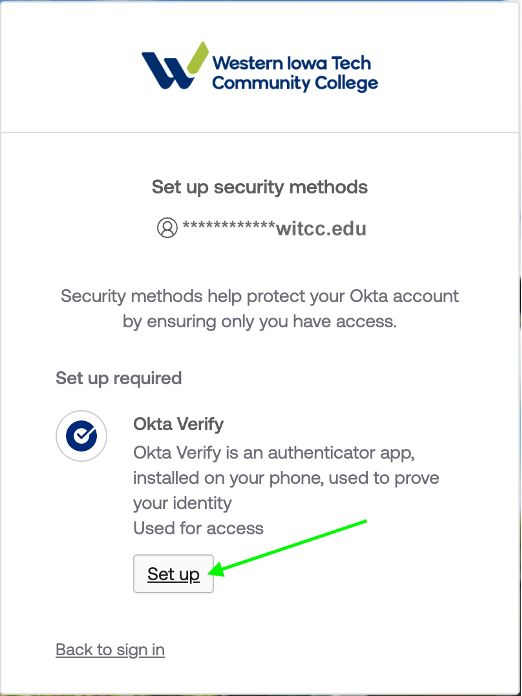
Once you click "Verify," you should be prompted to set up your Multi-Factor Authentication utilizing the "OKTA Verify" app on your phone or on your computer.
Select "Set up" to continue.
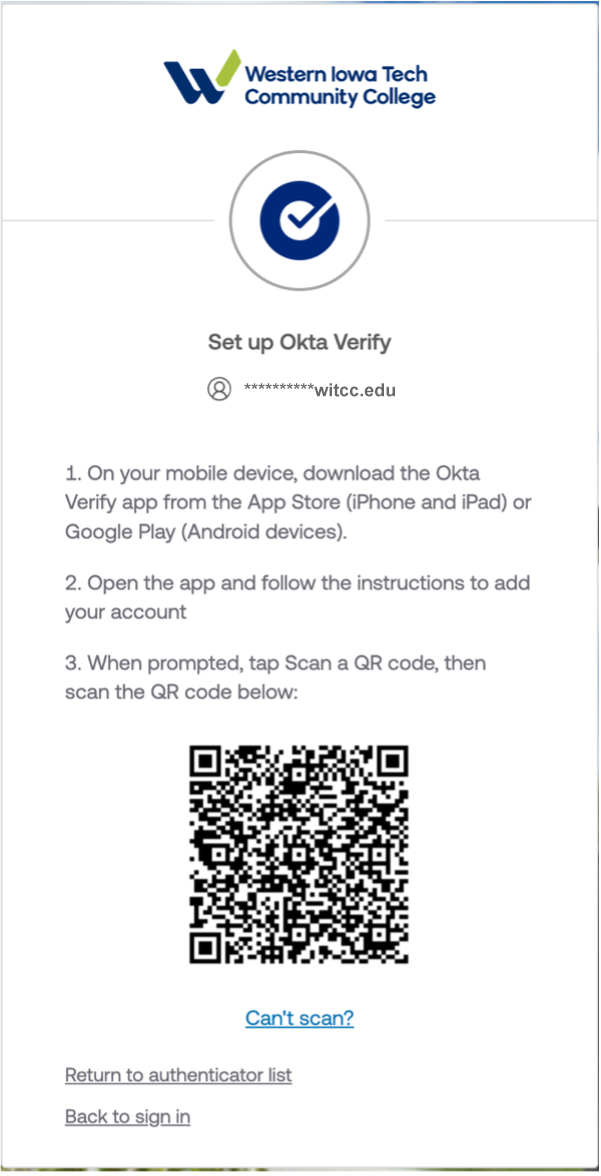
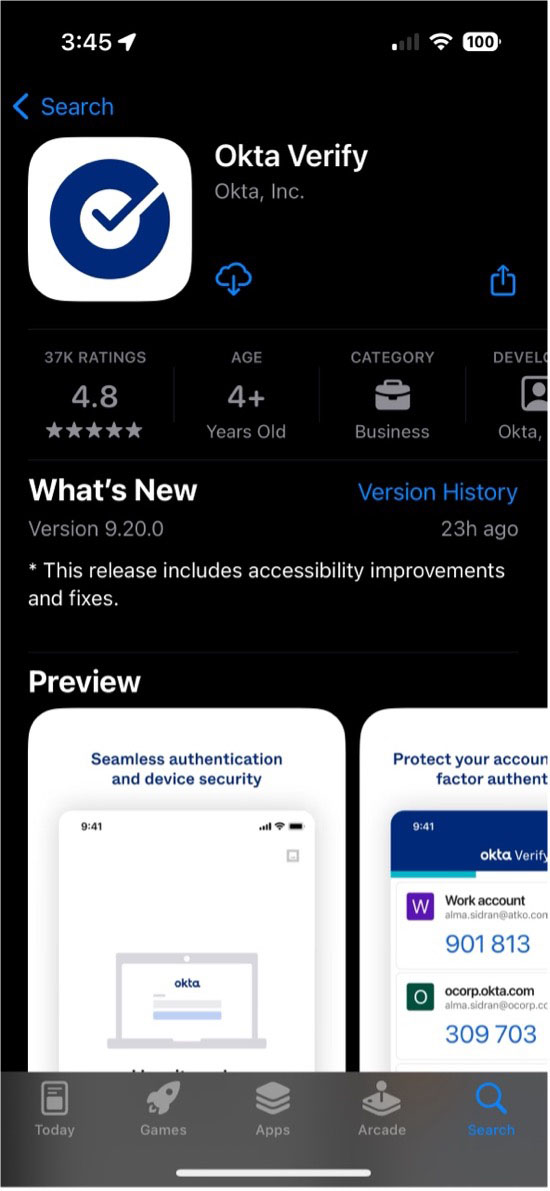
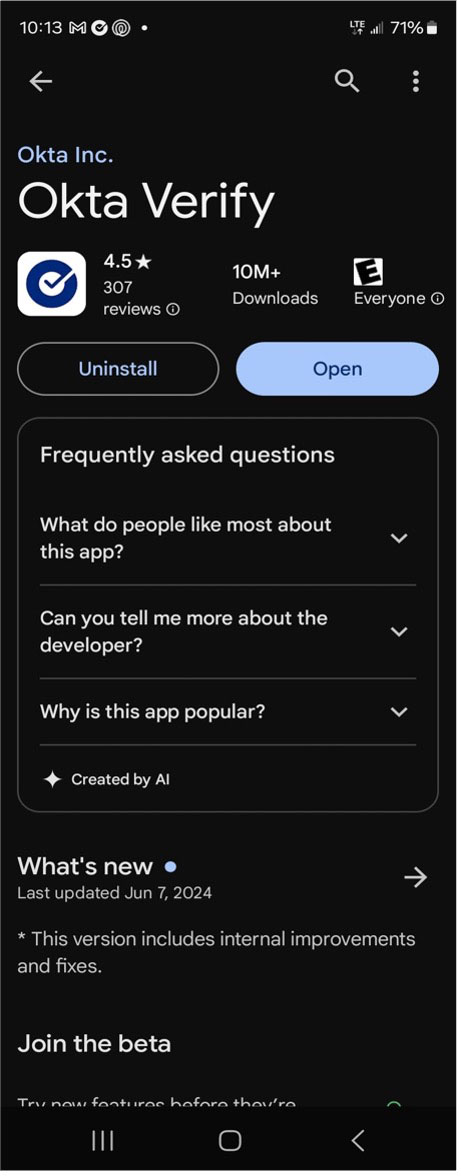
Next, you will be prompted to scan the QR code to set up your OKTA Verify app. Do note that you HAVE TO scan the QR code with the OKTA Verify app on your phone. To install the app, go to the Play Store (Android) or App Store (Apple) and search OKTA Verify and install it. The app should look like the example below:
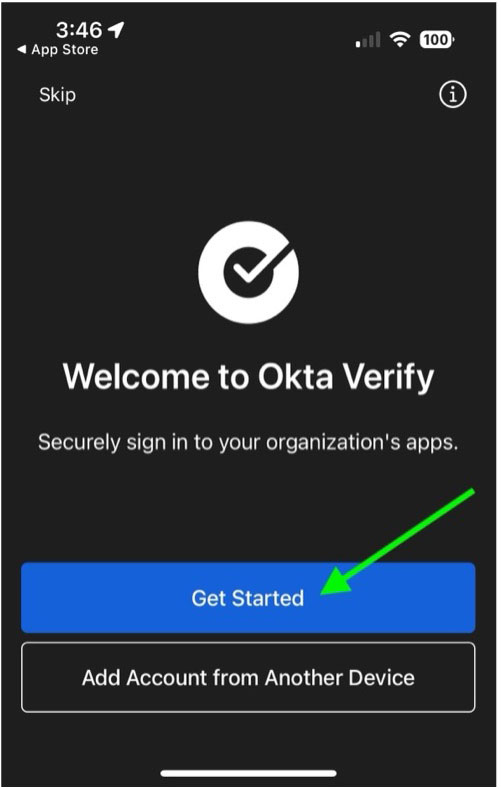
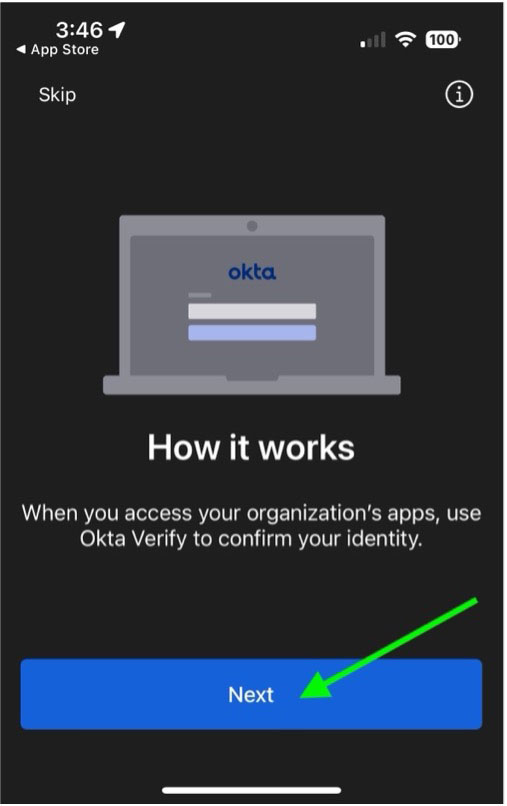
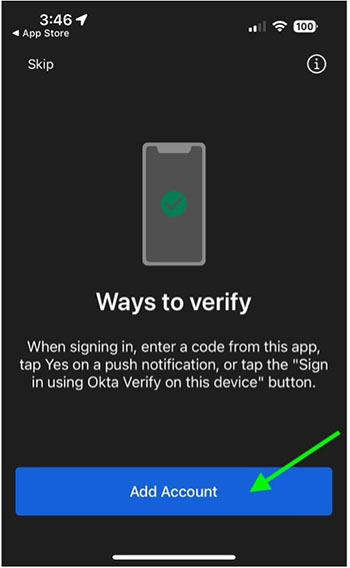
Once it is installed, go ahead and open the app, then click "Get Started," "Next," then "Add Account."
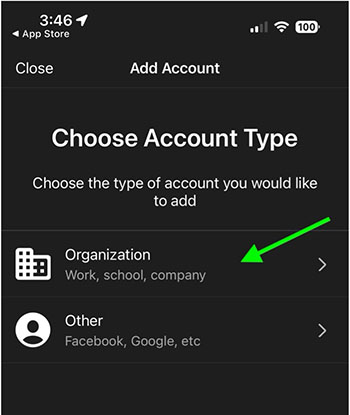
After this you will need to choose an account type. Select "Organization", then click "Skip" on the next option. After this, it will ask if you have your QR Code ready. Click "Yes, Ready to Scan" and scan the QR code that is showing on your computer. Hold your phone so that the QR code on your computer is inside the small box on your phone.
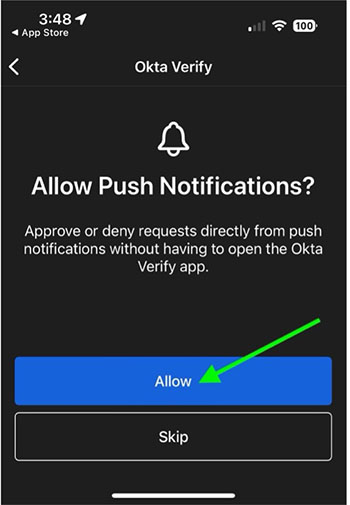
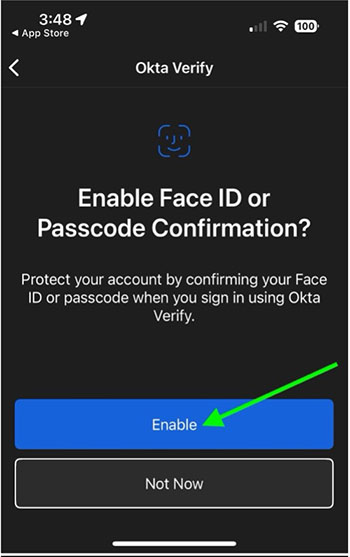
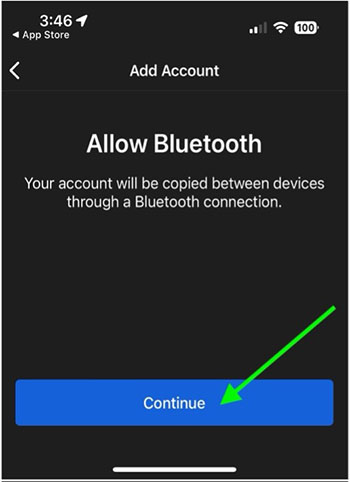
Once it has scanned, it will ask you to allow push notifications. Select "Allow" and if prompted, allow notifications through the pop up. Next it will ask you if you want to enable FaceID (iPhone) or Screen lock confirmation (Android). Enable if desired, otherwise select "Not Now". If prompted, Allow Bluetooth as seen below.
You are all set! If you need any additional help or have questions about this, please contact the IT Help Desk at 712-314-2727 OR email us at helpdesk@witcc.edu.